Guides / Front desk
Guide · Front deskHow to set up a self check-in kiosk for your gym
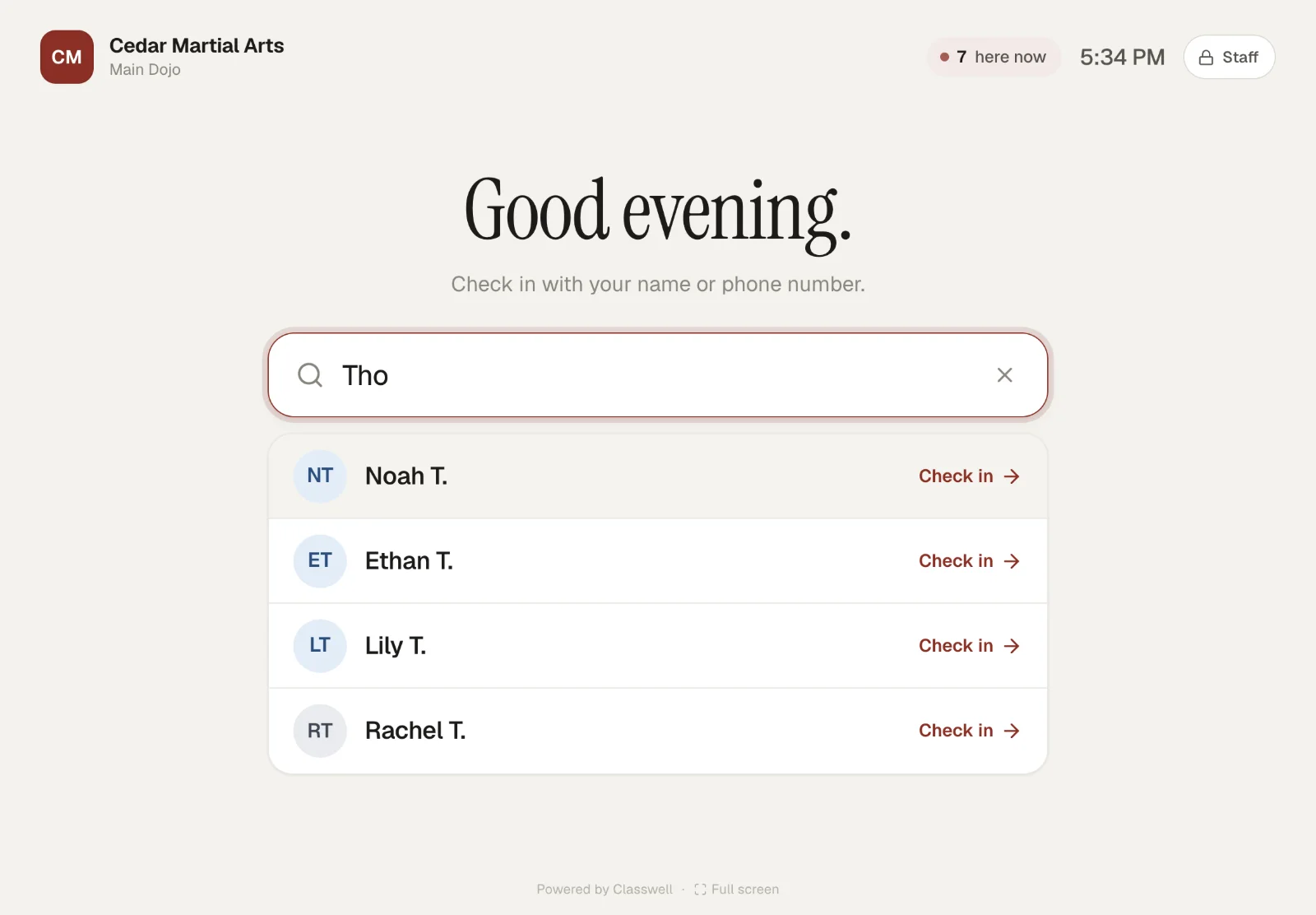
A tablet by the door can take check-ins off your front desk entirely, if it is in the right place, locked to one app and set up with sensible rules. This is what we learned setting one up at a busy gym.
The short version
- Put the kiosk on the path from the door to the floor, at chest-to-eye height, never behind the desk.
- Lock the tablet to one app with Guided Access on iPad or app pinning on Android.
- Let people check in by name or phone, and by a pass on their phone for speed.
- Decide what happens when a waiver is missing: block the check-in or warn the desk.
- Show first names and an initial only. A shared screen is a public screen.
At five to six on a weeknight, the front desk of a busy gym is doing three jobs at once: checking people in, answering a parent's question and trying to sell a trial. A self check-in kiosk takes the first job away completely. Members find their name on a tablet by the door, tap once, and walk in.
It only works if the kiosk is in the right place, locked to one app and set up with rules your staff agree with. Here is how to get each part right.
What a kiosk does for you
- A calmer front desk. Staff spend the busy half hour on people, not on finding names in a list.
- Accurate attendance. Every class is counted, which feeds everything from belt readiness to spotting members who have gone quiet.
- Waivers caught at the door. A missing or outdated waiver shows up before someone trains, not after.
- A live headcount. You can see how many people are in the building right now.
What you need
The hardware is simple, and you may already own most of it.
| Item | What to look for |
|---|---|
| Tablet | A 10-inch or larger screen, a front camera good enough to scan a code, and the ability to lock it to one app. |
| Mount or stand | A locking wall mount or a stand cabled to the counter, so it cannot walk off. |
| Power | A cable long enough to keep it charging all day, from an outlet that is not on a light switch. |
| Wi-Fi | A strong, steady signal where the tablet sits. Test it at your busiest hour. |
| Scanner (optional) | A USB or Bluetooth barcode scanner, if you want faster pass scans than the camera. |
Where to put it
Placement decides whether members use the kiosk or walk past it. Put it on the path from the front door to the training floor, where everyone passes it on the way in. A kiosk behind the desk or tucked in a corner turns back into a front-desk job within a week.
- Between chest and eye height, so adults can use it without bending and kids can still reach.
- Visible from the front desk, so staff can help without leaving their spot.
- Out of direct sunlight and away from the door's draft and rain.
- Not where a queue at the kiosk would block the doorway.
Lock the tablet to one app
A shared tablet will get poked at. Lock it so members can only use check-in, not the browser, the settings or the camera roll. Both major tablet systems have this built in.
On an iPad: Guided Access
Apple's Guided Access locks an iPad to a single app. Turn it on in Settings, then Accessibility, then Guided Access, and set a passcode only staff know. Open your check-in page, start Guided Access, and the iPad stays on that screen until a staff member ends it.
On Android: app pinning
Android's app pinning does the same job. Turn it on in Settings, under Security, then pin the screen with your check-in page open. Set it to ask for your PIN before unpinning.
Then do the small things that stop the kiosk going dark mid-evening:
- Set the screen to never lock while it is charging, or to the longest timeout available.
- Turn off notifications, so a message does not pop up over the check-in screen.
- Give the kiosk its own staff login, so signing out of the desk computer does not sign out the door.
Choose how people check in
Offer more than one way in. Regulars want speed; a first-timer needs something obvious.
- Name or phone number. The member types a few letters and taps their name. Nothing to remember, nothing to install.
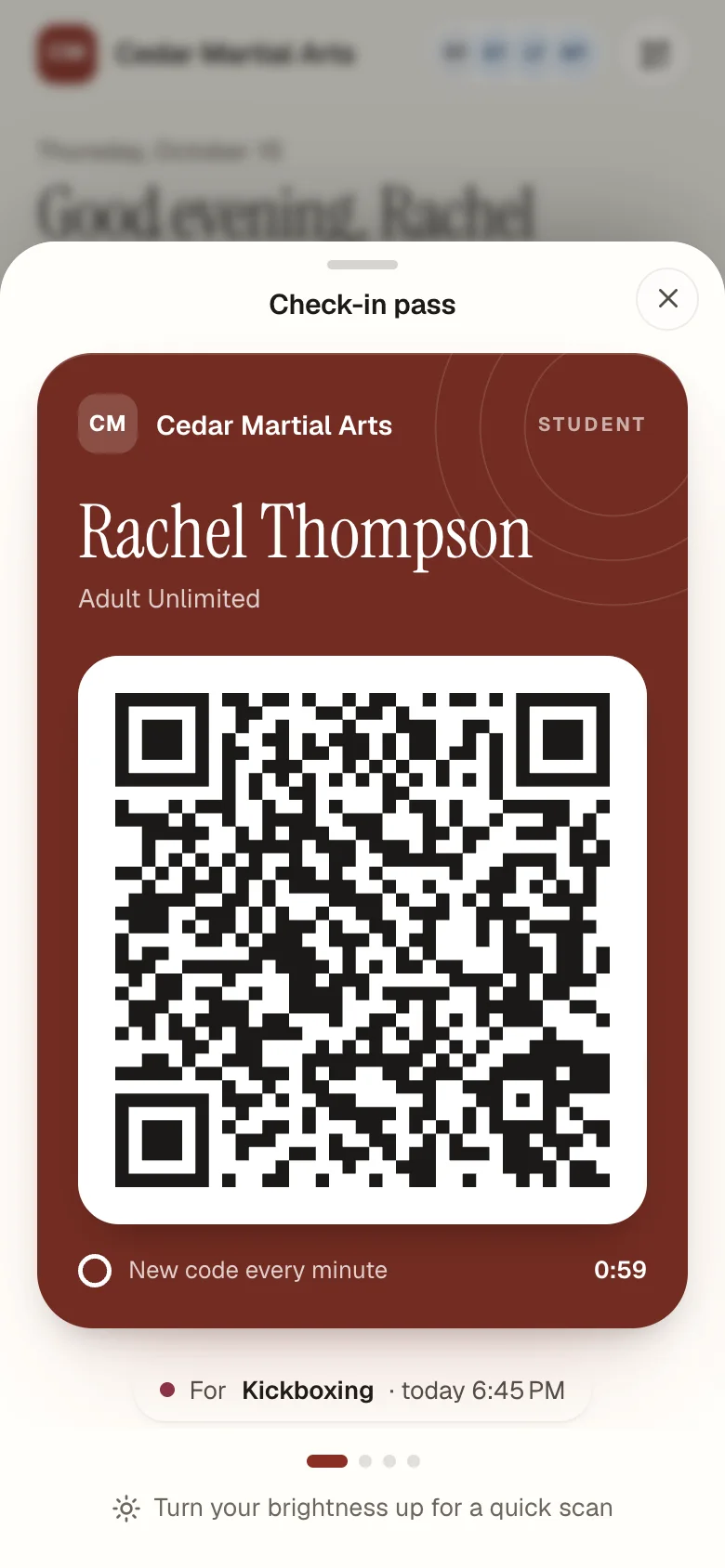
- A pass on their phone. The fastest option for regulars: hold the phone up and they are in. A code that refreshes itself stops a screenshot being passed around.
- The front desk. Always keep a staff check-in as the backup, for the member with a flat phone or the day the Wi-Fi drops.
Set the rules at the door
A kiosk enforces whatever rules you give it, consistently. Decide them before launch, with your staff.
- Missing waiver: block the check-in until it is signed, or let them in and warn the desk. Read our guide to gym waivers before you choose.
- Signing at the kiosk: if you allow it, ask for a quick identity check first, such as a birth date or phone number.
- Children: decide whether kids check themselves in or a parent does it, and keep children's photos off the shared screen unless a guardian agrees.
- Staff access: protect the kiosk's staff panel with a PIN, so members cannot change settings.
Remember it is a public screen
Anyone standing near the kiosk can see it. Show first names and an initial, not full names. Never show balances, payment problems or notes on the kiosk. Those belong on the front desk's screen, not the door's.
Your launch week
- A week beforeTell membersA short message and a sign by the door: from Monday, check yourself in on the tablet.
- Day oneStand next to itPut a staff member beside the kiosk for the busiest hour and show people once.
- Day threeCheck the numbersCompare kiosk check-ins with class headcounts and fix any gaps, like members with no phone on file.
- End of weekStep backMost members will be checking themselves in. The desk handles the exceptions.
Classwell's kiosk shows a "you're in" card that gets out of the way in a few seconds, a "here now" count, and an optional list of who just arrived for the coach. See the full list on ourcheck-in and kiosk page, or try it in the demo gym.
Questions owners ask
Should I use an iPad or an Android tablet?
Either can work. Pick a tablet with a 10-inch or larger screen, a reliable camera if members will scan a pass, and support for locking it to one app. Classwell’s kiosk runs in the tablet’s browser and is used on iPads at R1P Fitness.
Do members need an app to use the kiosk?
No. They can find their name or phone number on the tablet. A pass on their phone is a faster option for regulars, not a requirement.
What happens if the Wi-Fi goes down?
A browser-based kiosk needs an internet connection to check people in. Keep a front-desk check-in as the backup, and put the tablet where your Wi-Fi is strongest.
Can children check themselves in?
Many gyms let older kids check in with their name, while a parent checks in younger ones. Keep children’s photos off the shared screen unless a guardian agrees.
Sources
- Use Guided Access on iPhone or iPad, Apple Support
- Pin & unpin screens, Android Help
Read next
 Waivers · 6 min read
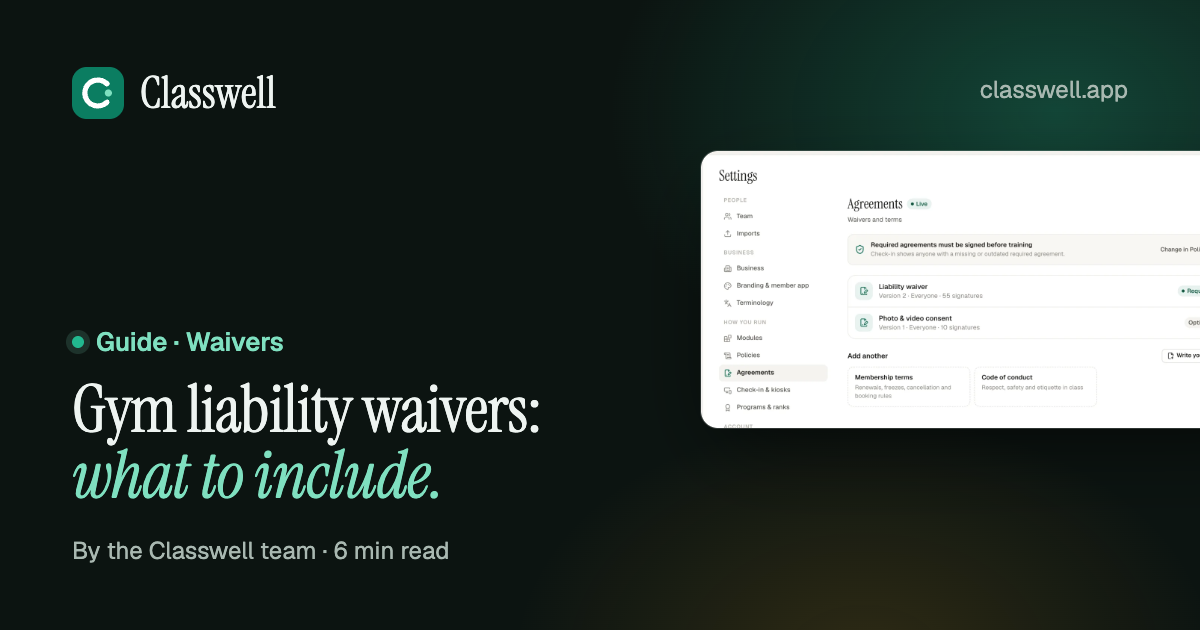
Gym liability waivers: what to include and how to manage them
A waiver only helps if it is clear, signed by the right person, and signed before they train. Here is what most gym waivers cover, where state law changes the picture, and how to run them without a filing cabinet.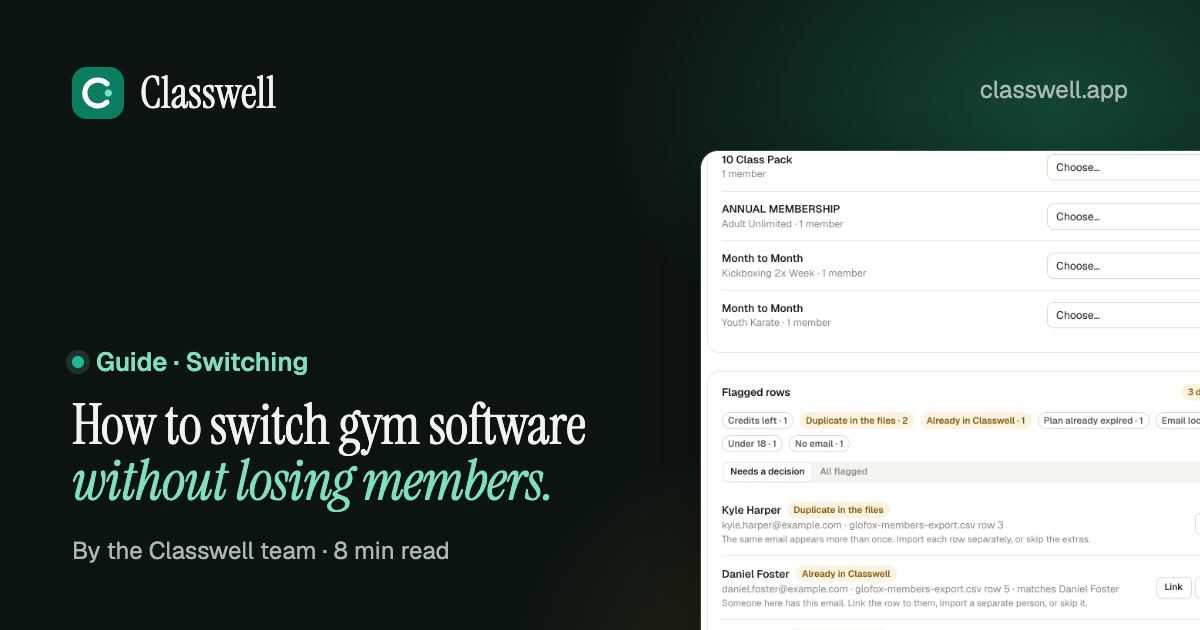 Switching · 8 min read
How to switch gym software without losing members
Members rarely leave because you changed software. They leave because of a surprise charge, a booking that vanished or a switch nobody explained. Here is the order of work that avoids all three. Choosing software · 7 min read
How to choose gym management software: a checklist for small gyms
Feature lists all look the same. The differences show up on a busy Monday evening, in the payment terms and on the day you want to leave. This checklist tests for those.See it on a real schedule, not a sales call.
The demo gym runs on sample data. Click through the Today screen, the kiosk, the member app and a Glofox switch. No sign-up.