Guides / Switching
Guide · SwitchingHow to export your data from Glofox, and check it
Your members, leads and history are yours, and an export is how you take them with you. This is the list of files to ask for, how to check them, and the mistakes that cost gyms a week.
The short version
- Export members by status (active first, then frozen, expired and cancelled) so you can decide who moves.
- Ask for leads, memberships and attendance history too. They are the files people forget.
- Card details do not come in a spreadsheet. They move from one payment processor to another on request.
- Open every file before you import it: count the rows, look for duplicates and people with no email.
- Treat the files as private data. Keep them off email and delete the copies when the move is done.
Whatever you decide about your software, your members, leads and history belong to your business. An export is how you keep them, whether you are moving to a new system, keeping a backup or just checking what you have.
This guide covers which files to ask for, what to check in each one, and the questions worth asking before you give notice. It comes from moving a real gym,R1P Fitness, off Glofox, where 189 of 189 members and 3,716 of 3,716 lead records came across.
Before you start
A few minutes of preparation saves a week of back-and-forth later.
- Use an owner or admin login. Staff accounts often cannot see every report or export.
- Read your agreement. Note the notice period and any rules about releasing data when you leave.
- Ask about fees in writing. Ask your account manager which exports are included and whether any, such as payment or billing data, need a separate request.
- Pick a private place for the files. A folder only you and the person helping with the move can open. Not an email thread, not a shared drive the whole team sees.
What to export
Most switches need the first three files. The others are what people wish they had taken, three months later.
| File | What it holds | Why you need it |
|---|---|---|
| Members | Names, contact details, dates of birth, membership status | The core of the move |
| Leads | Enquiries and trials, with where they came from | Your follow-up list and marketing history |
| Memberships | Plan names, prices and who is on each | Recreating your offers and pricing |
| Attendance or bookings | Who came to what, and when | Belt readiness, streaks, spotting quiet members |
| Waivers | Who accepted which agreement | A record of past consent |
| Billing | Plan status, next charge dates | Timing the billing switch-over |
Members: export by status
Member lists can usually be filtered by status before you download them. Export active members first, then frozen, expired and cancelled members as separate files. Separate files make the next decision easy: active and frozen members move, and you choose whether former members come too.
Bringing former members across is often worth it. They are the people most likely to come back, and a win-back message only works if you still have their details.
Leads: take all of them
Leads are the export people forget, and the one that costs the most to lose. Take the full history, not just open leads. A lead from last spring who never booked is still someone who asked about your gym.
Memberships and plans
You will recreate your plans in the new system, so you need a clean list of names, prices and how many members are on each. Expect some tidying: plans renamed over the years, the same plan in two spellings, or a plan only one member is still on.
What does not come in a spreadsheet
Card details. No business should ever receive members' card numbers in a file. Stored cards move directly from one payment processor to another, under the card industry's security rules, when the account owner asks. Your new processor starts that request. Stripe, for example, documents it as apayments data import, and notes it can take from a few days to several weeks for the previous processor to send the data.
Signatures, as signatures. An export can tell you that someone accepted a waiver. It is a record, not a signed copy in your new system. Most gyms ask members to sign again in the new system, often at their next visit. Our guide to gym liability waivers covers why versions matter.
Internal IDs. Exports do not always include each member's ID from the old system. If you will need to match records later, for example to move cards, ask for an ID export early.
Check the files before you import them
Open every file in a spreadsheet before it goes anywhere. Ten minutes here catches the problems that otherwise surface on your first busy evening.
- Count the rows and compare them with the totals your dashboard shows. Write the numbers down: you will check the import against them.
- Look for duplicate emails. A parent with several children, or someone who signed up twice, often shares one email.
- Find rows with no email or an email that is clearly wrong. Those members cannot sign in to a new app until it is fixed.
- Find under-18s and check each has a parent or guardian you can link them to.
- Check dates. Make sure birthdays and start dates read the right way round, month and day.
- Check plan names for typos and old plans, so each maps cleanly to a new offer.
A good importer does most of this for you, but knowing your own numbers means you can tell when something is off.
Keep the files safe
These files hold your members' personal details, including children's. Treat them that way. Keep them in one private place, do not send them by email or chat, and delete the working copies once the move is done and checked. Keep one final export in secure storage as your record.
Importing a Glofox export into Classwell
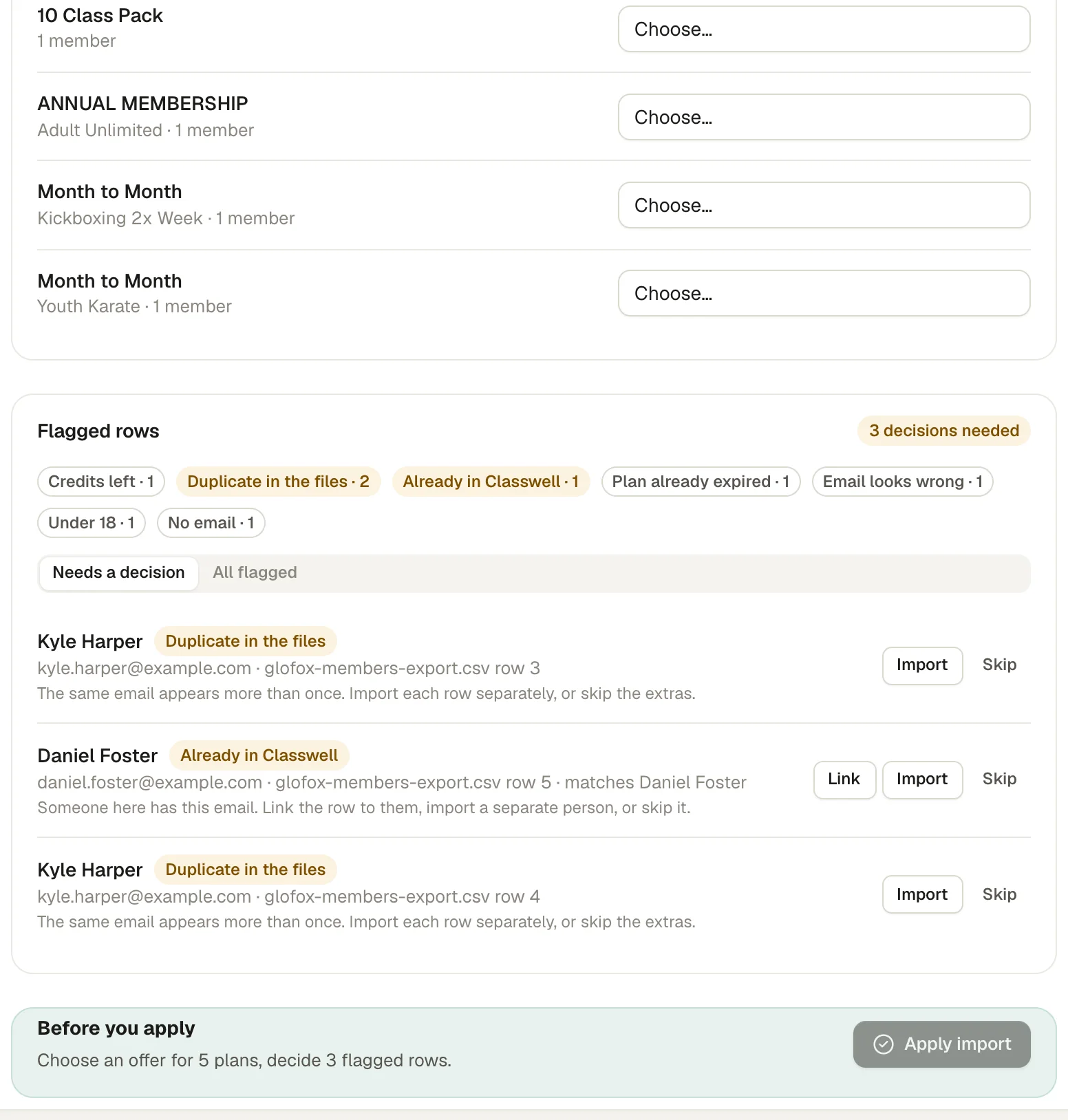
Classwell has a ready-made importer for Glofox member and lead exports. You add the files, and it shows a preview before anything is created: how many members, leads and new people, which plans need a matching offer, and every row that needs a decision, as in the screen at the top of this guide.
Flagged rows include duplicates in the files, people already in Classwell, under-18s, missing or broken emails, expired plans and credits left on a pack. For each one you choose to import, link it to an existing person or skip it. Nobody is emailed, invited or charged by an import, and nothing is created until you apply it.
Planning the whole move, not just the export? Read how to switch gym software without losing members.
Questions owners ask
Does Glofox charge to export data?
We can’t speak for Glofox’s terms, and they can change. Ask your account manager in writing which exports are included and whether any, such as payment or billing data, need a separate request or carry a fee.
Can I export members’ card details from Glofox?
No business should receive card numbers in a spreadsheet. Stored cards move directly between payment processors when the account owner requests it, under the card industry’s security rules. Your new processor will tell you how to start that request.
Which Glofox exports does Classwell need?
The members export and the leads export. Classwell’s importer reads both, shows you a preview with any flagged rows, and creates nothing until you apply it. Memberships come across as plans you map to your new offers.
How close to my switch-over date should I export?
Twice: once early, to plan and test the move, and again a day or two before you switch, so new members and changes made in between are not left behind.
Sources
- Glofox Help Center, Glofox
- Request a payments data import, Stripe Docs
Read next
 Switching · 8 min read
How to switch gym software without losing members
Members rarely leave because you changed software. They leave because of a surprise charge, a booking that vanished or a switch nobody explained. Here is the order of work that avoids all three. Choosing software · 7 min read
How to choose gym management software: a checklist for small gyms
Feature lists all look the same. The differences show up on a busy Monday evening, in the payment terms and on the day you want to leave. This checklist tests for those. Waivers · 6 min read
Gym liability waivers: what to include and how to manage them
A waiver only helps if it is clear, signed by the right person, and signed before they train. Here is what most gym waivers cover, where state law changes the picture, and how to run them without a filing cabinet.See it on a real schedule, not a sales call.
The demo gym runs on sample data. Click through the Today screen, the kiosk, the member app and a Glofox switch. No sign-up.